
Lesson 1 of 3 · 4 min
Show Lato on your desktop
Turn Lato on from the account menu or Desktop settings, then find it when the Oppermind window is not in front.
The principle
Lato on the desktop is part of Oppermind Desktop on Windows; the website does not have it. Show Lato on desktop in your account menu turns it on, and the same switch is in Desktop settings under Desktop buddy as Show Lato on the desktop. Lato is a small floating window that stays above your other windows. By default it hides while the Oppermind window is in front (Hide while Oppermind is in front), so switch to another app to see it. A small label shows what it is doing, such as Working, Done or Needs you. Hover over Lato for buttons including New chat, Open Oppermind and More, which holds Desktop settings and Hide Lato. The floating Lato is left out of the screenshots taken while Lato controls your PC, so it does not cover what Lato needs to see.
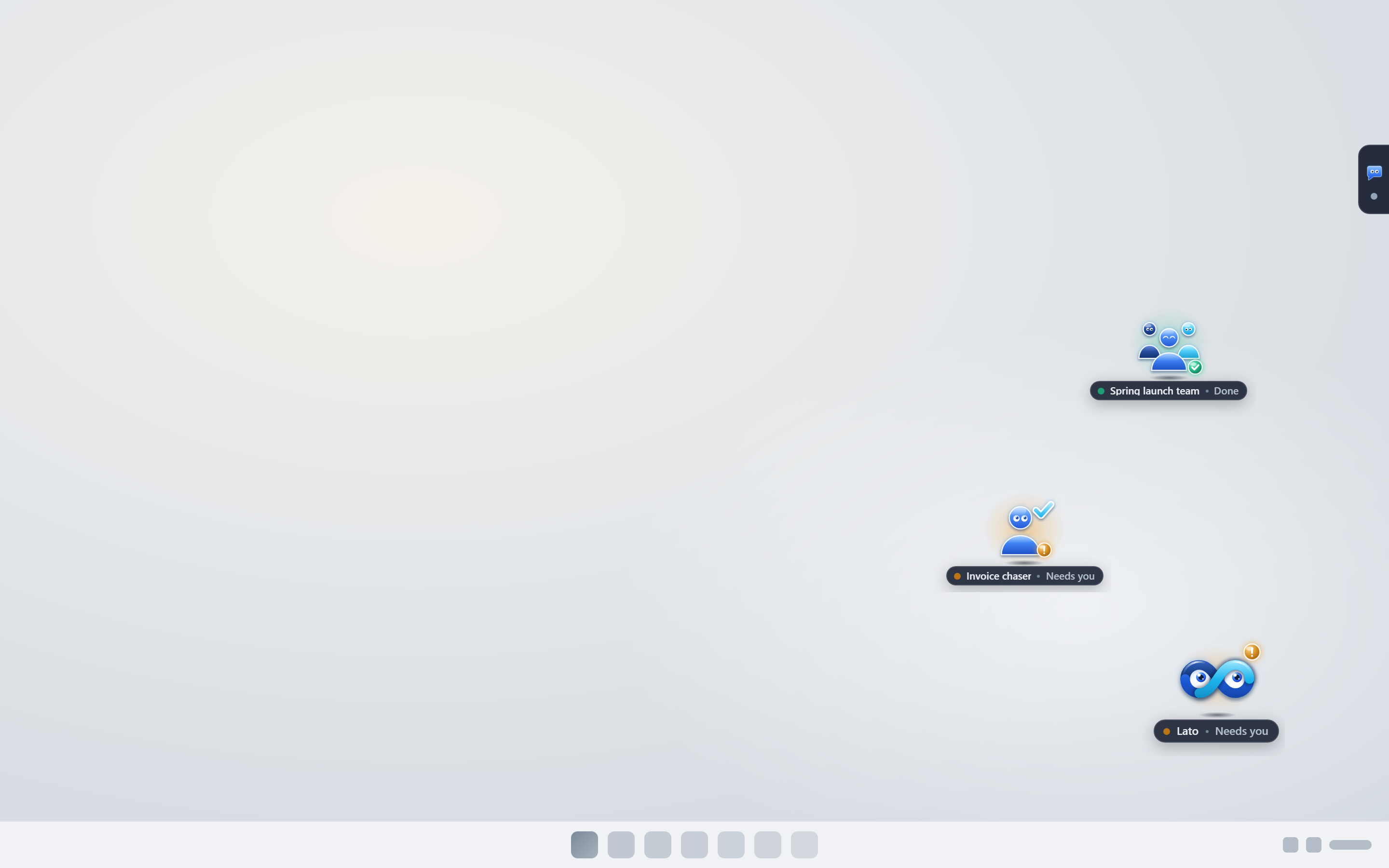
Try it in Oppermind
Open your account menu in Oppermind Desktop and choose Show Lato on desktop. Switch to another app, find Lato, and hover over it to see its buttons.