Desktop Agent connects a PC so Desktop Co-pilot can read the shared screen, move the cursor, type, manage windows, and run approved jobs. It is the native computer-control path, not the default for ordinary chat; in Oppermind Desktop, Lato can also use it from any chat once computer control is on, asking once per chat before it takes control.
Open our payroll desktop app and export the August pay run to my desktop.
◆ Lato · Pro
In this chat I can only tell you how: open the payroll app, go to Pay runs, select August, choose Export and save to your desktop. To have me do it on your PC, install Oppermind Desktop and turn on computer control, or switch the mode to Desktop Co-pilot.
Ordinary chat explains; doing it on your PC needs Oppermind Desktop and computer control.
Try this
✦In a browser chat in Auto mode, type:
Open our payroll desktop app and export the August pay run to my desktop.
What you getIn chat Oppermind can only tell you how; doing it on your PC needs Oppermind Desktop with computer control on, or the Desktop Co-pilot mode with a connected PC.
Install and authorize
On a Windows computer, open Settings, Apps and extensions, then download Oppermind Desktop. Run the installer, sign in with the same account, then choose Turn on computer control in the Desktop Co-pilot panel, or use the switch in Desktop settings, and choose Authorize when the app asks. A pairing code under Link a PC remains available for the standalone agent.
This computer
Authorize this computer?
Allow the account signed in to Oppermind to use computer control on this PC. Lato will be able to see your whole screen and send pictures of it to Oppermind while the agent runs. Your existing control permissions apply to Lato. Devices signed in to this account can also view and control this PC while the agent runs.
CancelAuthorize
Authorizing says what Lato and your other signed-in devices can do on this PC.
Try this
✦Open Settings from the avatar at bottom-left, choose Apps and extensions, click Download for Windows under Oppermind Desktop, run the installer and sign in. Then open the Desktop Co-pilot panel and choose Turn on computer control.
What you getOppermind asks Authorize this computer?; after Authorize, the PC is linked to your account and Desktop Co-pilot can work on it.
Choose the mode
Select Desktop Co-pilot from chat modes when the task needs native automation; in Oppermind Desktop you can also simply ask from any chat. If no PC is connected, open the Desktop Co-pilot panel and connect the installed agent before sending the instruction again.
Basics
Auto~2–30sPicks the best approach for your request - instant for quick questions, deeper reasoning or a Workspace Agent when the work needs it.
Doing (agents & control)
Workspace Agent 1.0~30s–3mLighter, quicker agent - plans, uses tools, and produces artifacts for everyday tasks.
Workspace Agent 2.0~1–5mFor more complex work - full agent with desktop editor access; plans, runs tools, and delivers documents, sheets, decks and designs straight into their editors.
Code Agent~1–10mBuilds web apps and multi-file projects - writes/edits files, runs a terminal, previews and ships code.
Browser Operator~1–10mOperate a specific website: open pages, click, type and fill forms. Not for normal chat or general search.
Desktop Co-pilot sits with the other control modes in the mode picker.
Try this
✦Click the mode chip that reads Auto, choose Desktop Co-pilot, and type:
Open the timesheet app, go to this week and take a screenshot of the summary tab for me.
What you getIf no PC is connected the reply tells you to open the Desktop Co-pilot panel on the right and connect the installed agent first; once connected, the task runs on your PC.
Follow the live panel
The Desktop Co-pilot panel shows your PC's screen with one toolbar: zoom in and move around the screen, switch between Watch and Take control, and find settings behind the gear. Stop, redirect or take control whenever the path, permissions or result needs correction.
Wrong record. Use Harbour Cafe, account 2041, and continue from the address field.
◆ Lato · Pro
Opened Harbour Cafe, account 2041, and continuing from the address field. The screen view in the panel shows where I am.
Correct the run in plain words; the panel shows where it is.
Try this
✦While Lato fills in a supplier form in the accounting app, watch the panel's screen view. If it opens the wrong customer record, stop it and type:
Wrong record. Use Harbour Cafe, account 2041, and continue from the address field.
What you getThe run halts, the screen view shows the current state, and the corrected instruction carries on from there; Take control lets you use the mouse and keyboard yourself.
Keep permissions deliberate
Start with reversible tasks and give only the access required. Local MCP tools and native actions remain behind the Desktop Agent permission flow.
Create a folder called Test-Lato on the desktop and move today's two screenshots into it. Ask me before deleting anything.
◆ Lato · Pro
Desktop Co-pilot accepted the instruction; live progress and the screen view are in the panel on the right. Done: created Test-Lato on the desktop and moved today's two screenshots into it. Nothing was deleted and local MCP tools stayed off; both need your permission first.
A reversible first task; deletion and local MCP tools wait behind the permission flow.
Try this
✦Keep the first task reversible:
Create a folder called Test-Lato on the desktop and move today's two screenshots into it. Ask me before deleting anything.
What you getThe folder move is easy to undo, anything outside what you allowed pauses for permission, and local MCP tools stay off until you enable them in the Desktop Agent permission flow.
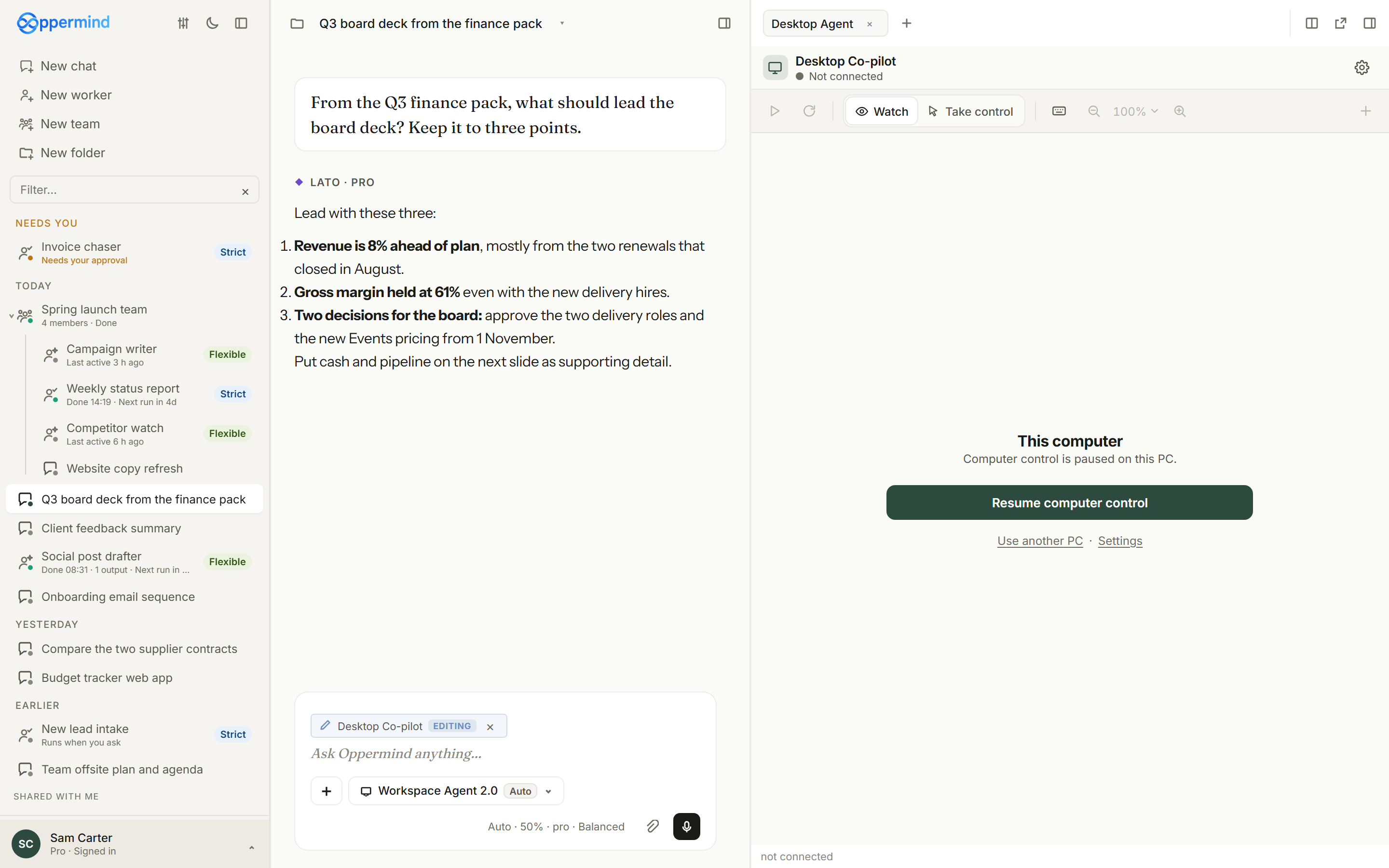
Resume computer control
When computer control is paused on this PC, the Desktop Co-pilot panel shows the line Computer control is paused on this PC with a Resume computer control button. Choose it and confirm with Resume, and Lato can use your mouse, keyboard and apps again; you can pause it at any time. The button needs the latest Oppermind Desktop; elsewhere, the panel tells you to resume it in settings.
One button brings computer control back, after you confirm.
Try this
✦Open the Desktop Co-pilot panel while computer control is paused and choose Resume computer control.
What you getResume computer control? appears; after Resume, the panel connects to this PC again and Lato can carry on.
When a chat says control is paused
If you ask Lato to use your PC while computer control is paused, the chat says so instead of waiting, and points you to Resume computer control in the Desktop Co-pilot panel. While control is paused, tasks from the Chrome extension, Stream Deck or foot-pedal keys and webhooks do not start, and scheduled jobs wait until you resume.
Open Excel and start a new workbook.
◆ Lato · Pro
Computer control is paused on this PC, so this is waiting. Select Resume computer control in the panel on the right and it will start.
A paused PC is named in the chat, with the way to resume it.
Try this
✦With computer control paused, type in a Desktop Co-pilot chat:
Open Excel and start a new workbook.
What you getThe reply says computer control is paused on this PC and points you to Resume computer control in the panel on the right; once you resume, the task starts.
GUIDED LEARNING
Practise this in Oppermind Academy
Follow the related tutorial or course and apply the concept to a real task.
 This computer