Workflows and apps
AI workers
Choose a strict worker that follows taught steps or a flexible worker that works from a job, set when it runs, check its runs and keep approvals where they matter.
Updated 26 Oct 2026
Choose Strict or Flexible
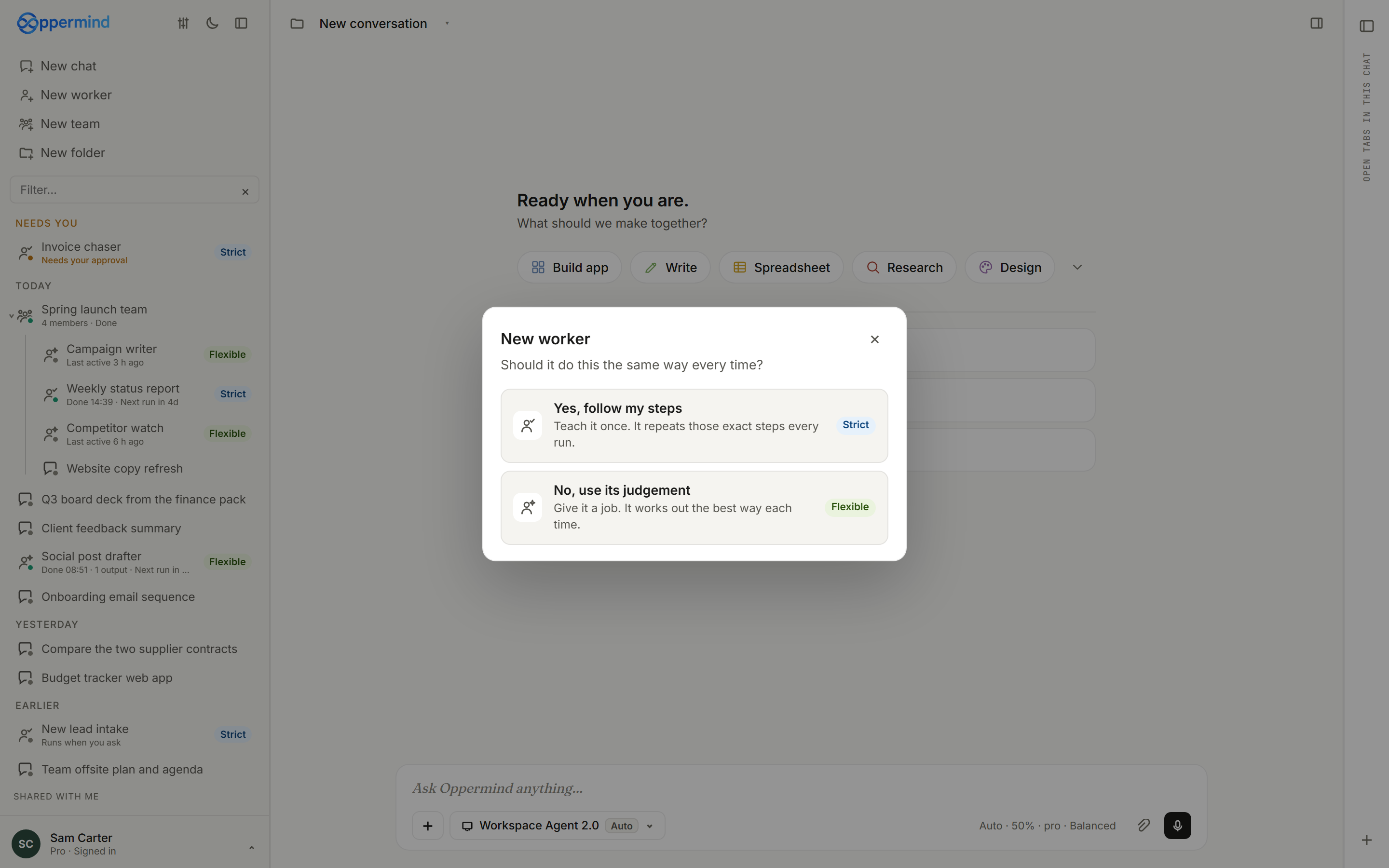
New worker asks one question: Should it do this the same way every time? Yes, follow my steps makes a strict worker that repeats the steps you teach it on every run; No, use its judgement makes a flexible worker that gets a job and works out the best way each time. Either way, start with bounded work: a clear trigger, known inputs, a clear output and someone who reviews it.
Teach a strict worker its steps
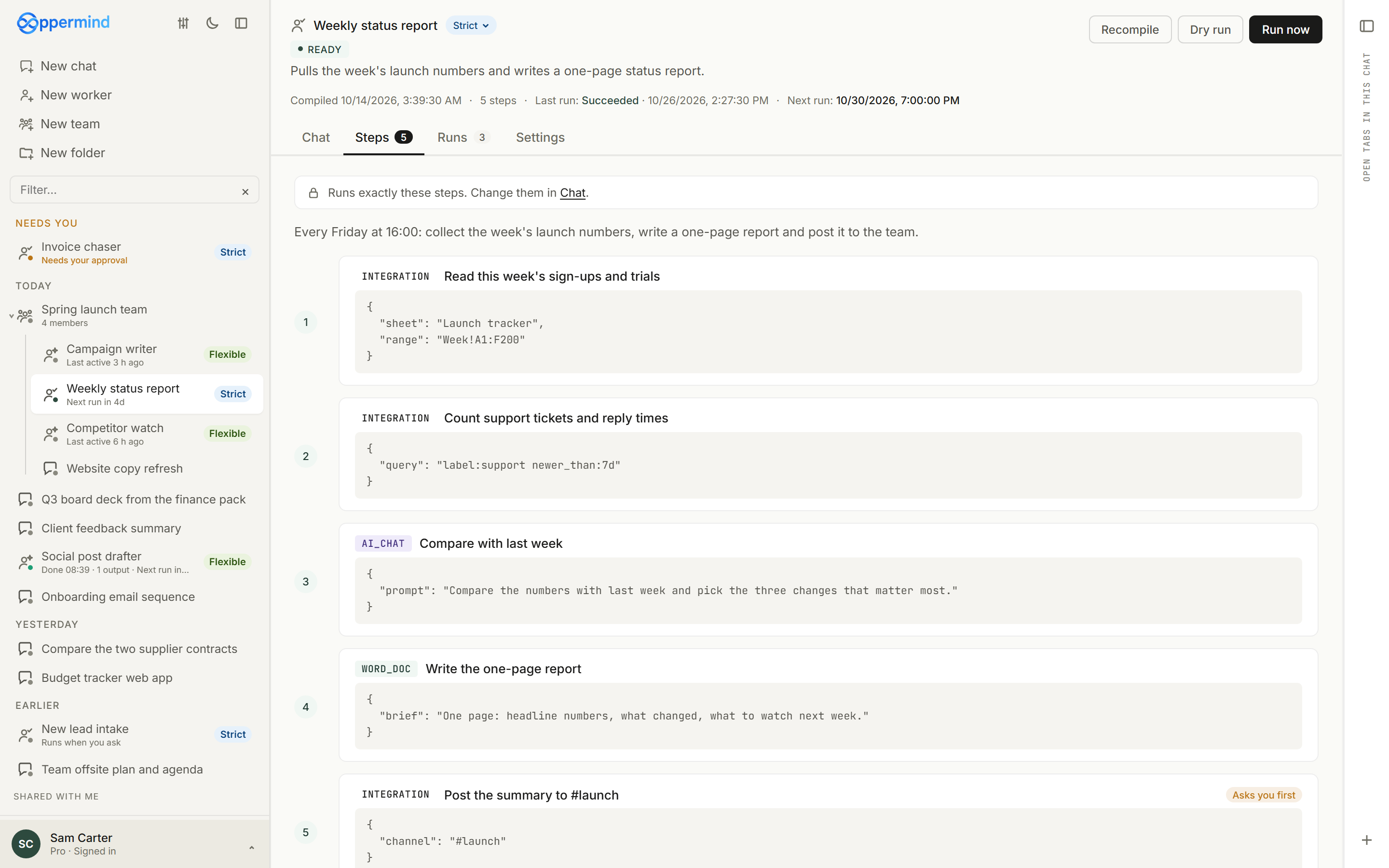
Teach a strict worker in its Chat tab: say what starts each run, which sources count, what it should produce and when it must stop and ask you. Recompile turns what you taught into steps, and the Steps tab shows them with the note Runs exactly these steps. Use Dry run to see what it would do, then Run now.
Give a flexible worker its job
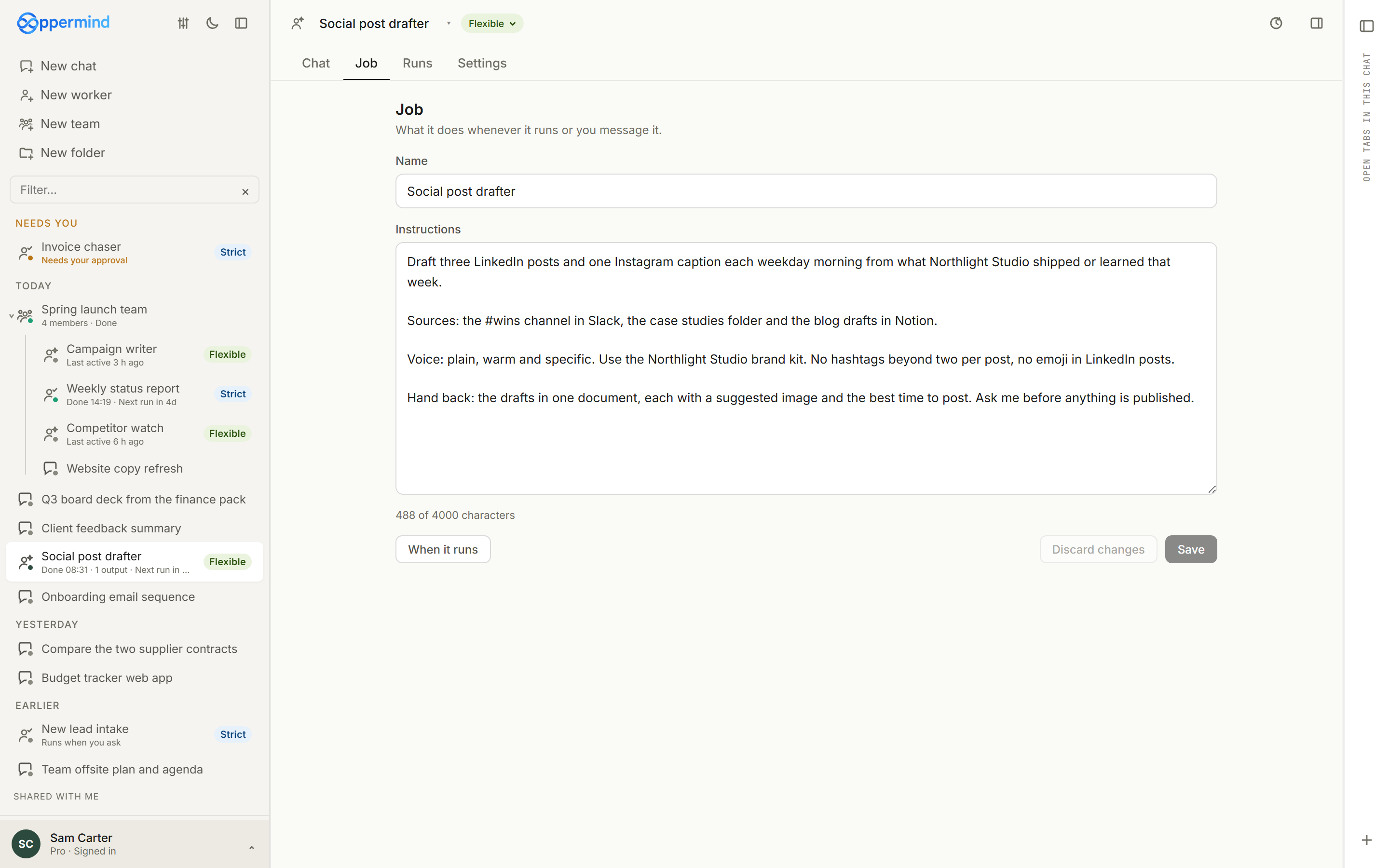
A new flexible worker's first card asks for a Name, a Goal and When to work, or Start from a template fills them in from a Marketplace worker template. Its Job tab keeps the name and instructions it reads before every run; change them and choose Save. Flexible workers covers the rest.
Set when it runs
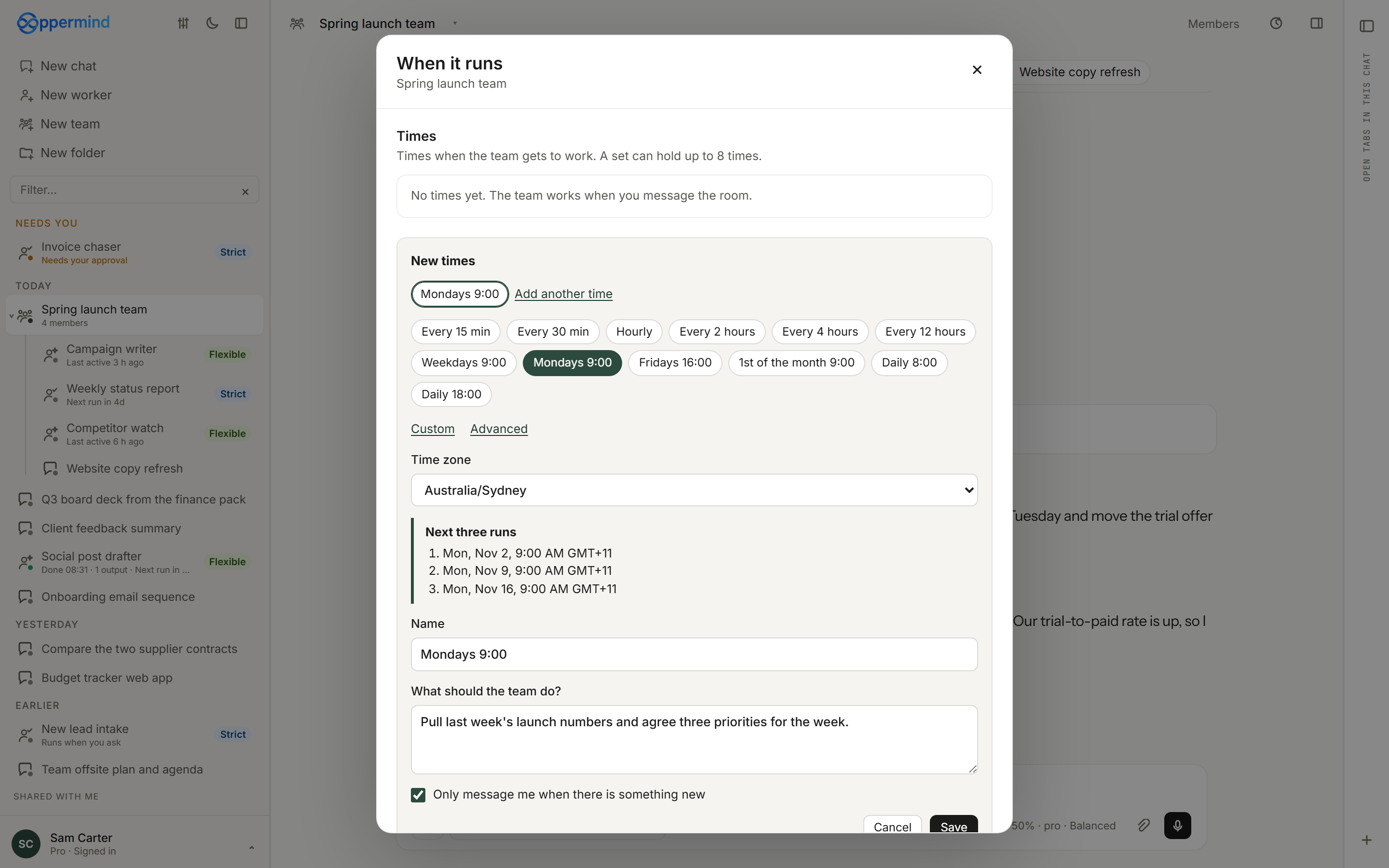
Every worker and team uses the same When it runs screen, in the Settings tab. Choose Add a time and pick a preset such as Weekdays 9:00 or Mondays 9:00, or use Custom or Advanced, and Next three runs shows when it will start. Under When something happens, a strict worker can start from a webhook, an email, a Slack channel or a watched folder, and a flexible worker or team from a webhook or a connected Slack, Gmail, Outlook or GitHub account.
Give it only the access it needs
Attach only the skills and connectors the job needs; a worker does not need broad access to be useful. A strict worker's Settings tab lists its knowledge and connectors, with Add connector. Start with access that reads, and add the ability to send or change things once the results hold up.
Check runs and approvals
The Runs tab lists every run, and opening one shows each step it took; a strict worker run that reaches an approval step waits as Waiting approval until you choose Approve or Reject. Changes through a connected account wait for your approval while you are chatting with a worker, runs from a schedule or a team make them without asking, and a run started by a webhook or account event makes no changes until you approve them in the chat. Keep an approval step before anything that sends, publishes or changes records.
Switch between Strict and Flexible
The Strict or Flexible tag next to a worker's name switches it. Strict to Flexible drafts a job from what you taught and opens it for you to check; Flexible to Strict asks whether to Use its last good run as the steps or Teach it from scratch. Undo appears straight after, and the worker keeps its seat in a team and its folder.
 This computer
It stops following these exact steps and uses its own judgement. Its job is drafted from what you taught it, and you'll check it next. You can undo straight after.
Keep doing this after a task
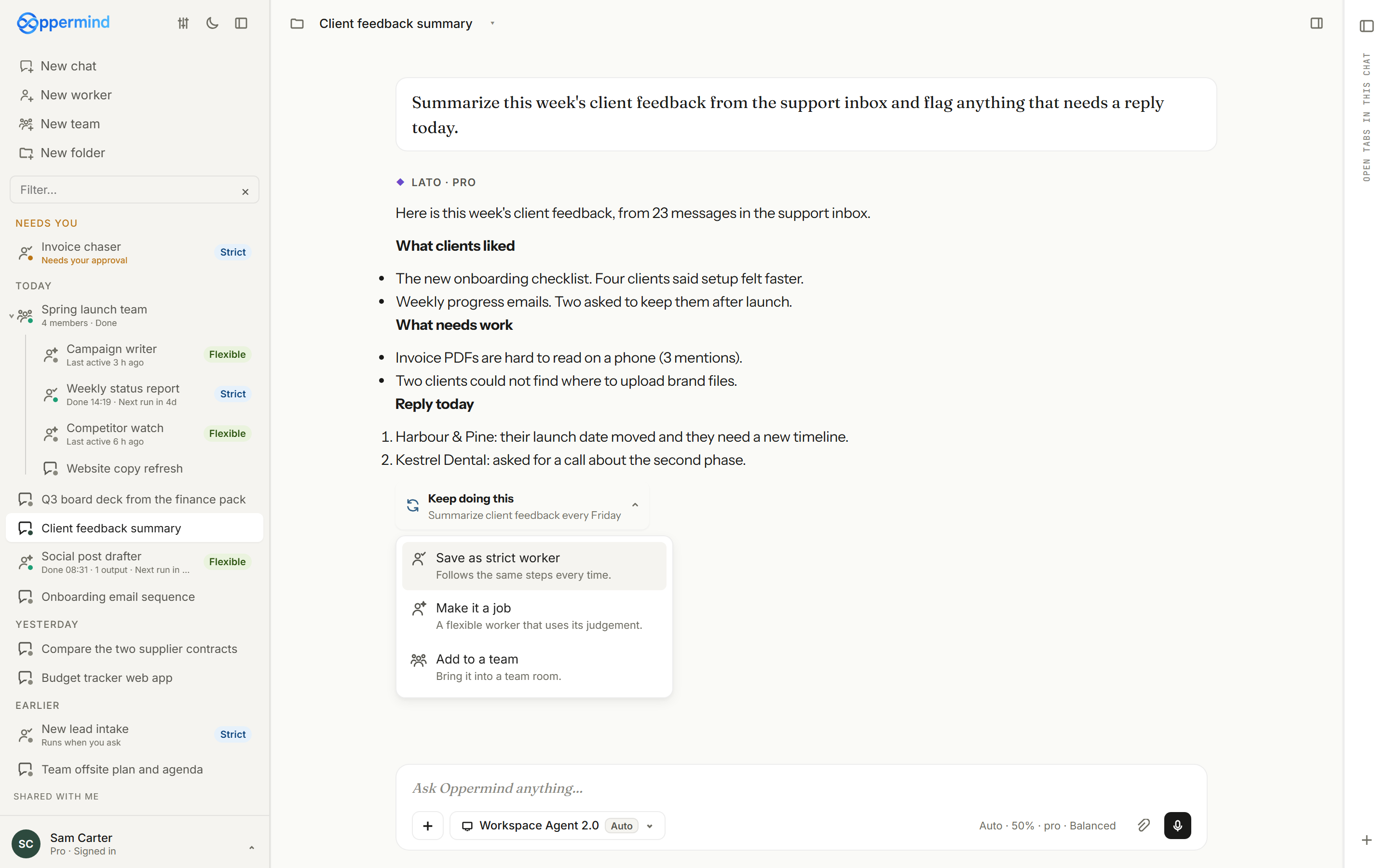
When a chat finishes a task you are likely to want again, Lato can offer Keep doing this, and the same menu is under Keep doing this… in the chat's title menu. Save as strict worker learns the steps from the chat, Make it a job turns it into a flexible worker's job, and Add to a team brings this chat, or a new worker made from it, into a team.
Practise this in Oppermind Academy
Follow the related tutorial or course and apply the concept to a real task.